🌐 🇵🇱 Polski · 🇬🇧 EN

If you have recently installed Windows updates and one of them, namely KB4598242, has caused some problems, you are not alone. The network is flooded with questions from users who have encountered issues with this particular update. One of the problems is the constant prompting to restart the computer due to this update, despite it being listed as successfully installed in the update history.
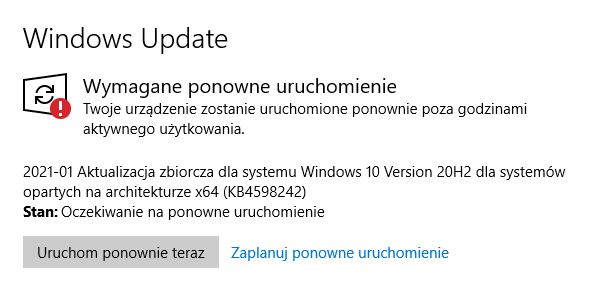

If you are experiencing this situation, one possible solution is to manually clear the directory:
C:\Windows\SoftwareDistribution\Download
We simply go to the above directory, select all elements (Ctrl + A) and delete them. After this operation, we restart the computer, and from now on, the Windows update service should realize that everything is in order.

If the problem looks a bit different and the entry in the update history looks something like this:

You can try to install this update manually by downloading it from the Windows Update Catalog. It's also worth using the system file checking tool available in the system, which can be easily launched from the system terminal CMD.
To do this:
- Type "cmd" in the Start menu
- Run the CMD service with administrator privileges
- In the terminal window, enter the command: sfc /scannow

The above actions should resolve the issue.
Comments