Has your computer been overheating lately, to the point where the laptop casing is almost untouchable? The culprit may be the Nvidia driver. CPU overheating often occurs after certain updates that our system receives from the manufacturer. Microsoft does not thoroughly test its solutions in relation to Nvidia drivers.
How to track which process is loading our CPU?
In Windows systems, we can review the data shown by the Resource Monitor. From the start menu, simply type its name. We can also use a small program to monitor the temperature of our processor: Core Temp.
In the "CPU Processor" tab, we can sort the results by the column showing "Average CPU usage" in order from highest to lowest, and thus track down the culprit.
To fix this situation, we can start by updating the Nvidia drivers on the manufacturer's website. We can experiment with the latest or older versions of the drivers, choosing one that eliminates high CPU usage.
We can start looking for drivers here:
or here:
After selecting the drivers, we can test the effects using a small program called
Core Temp, which shows the temperature of our processor with a breakdown of each core.
The manufacturer's website where we can download the Core Temp program:
If our system still doesn't work with Nvidia drivers, there's nothing left to do but get rid of the faulty process and try updating the drivers again after the next Microsoft update.
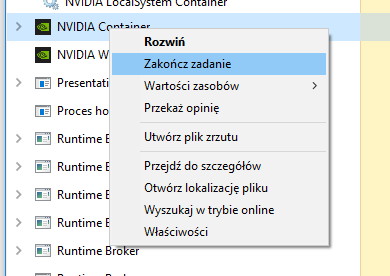
Step 1 - We call up the task manager using the shortcut: SHIFT + CTRL + ESC, or from the Windows menu.
Step 2 - We right-click on the selected process and request its termination. It may happen that there are more than one Nvidia Container process on the list
Step 3 - Removing Nvidia Container files to prevent this process from running again after restarting the computer.
- In the file explorer (called up by: WIN + E), we go to the programs directory
- Then we go to NVIDI Corporation
- Then we go to Display.NvContainer
- We delete NVDisplay.Container.exe in this location
From this point on, this process will no longer be launched when the system starts. We have lost some of the capabilities offered by this program, but if it causes our laptop to overheat like a grill, it's better to eliminate it.
The presented situation occurs in the Windows 10 20H2 build 19042.985 system
with the
Nvidia 26.21.14.4155 driver version
The device manager can be opened using the shortcut
WIN + X and selecting it from the menu.




Comments